

Order tracking
Customer order tracking for manufacturers
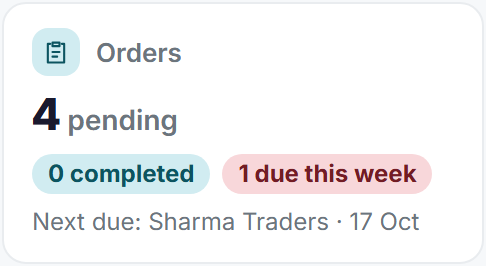
FactoryPulse AI keeps every customer order in one place, with its due date and status, so nobody has to scroll through WhatsApp to find out which order is late. The dashboard shows how many are pending, how many are due this week and which is next.
Create an order
- Open Orders and choose New Order.
- Enter the customer, the products and quantities, and the due date.
- Save. The order appears in the list.
Know the status
- New: just created.
- Active: being worked on.
- Complete: finished and delivered.
- Cancelled: no longer going ahead.
- An order past its due date and not complete is shown as Overdue.
Orders and production
When you record production you can link it to an order, so the order list shows how much is done.
Questions about the Tally connection
- How do I create an order?
- Open Orders, choose New Order, enter the customer, products, quantities and due date, and save.
- How do I see which orders are late?
- An order that is past its due date and not complete is shown as Overdue, and the dashboard shows how many are due this week.
- Can I link production to an order?
- Yes. When you record production you can link it to an order, and the order list shows how much is done.
- Can I ask which orders are due?
- Yes. Ask the AI Assistant, for example "Which orders are due this week?", and it answers from your own data.